
#Introduction
Multi-Factor Authentication (MFA) has long been considered a critical layer of defense in securing user identities. However, as attackers have evolved their tactics, traditional MFA methods — particularly push notifications — have become targets for a new type of attack known as MFA fatigue attacks.
In response, Microsoft has introduced several advanced security features in Microsoft Authenticator to combat these threats. In this article, I will cover the key features: Number Matching, Location Context, and Application Context, along with how to enable each of them.
#What Are MFA Fatigue Attacks?
MFA fatigue attacks, also known as MFA bombing or push notification spam, occur when an attacker who has already obtained a user’s credentials (username and password) repeatedly triggers MFA push notifications to the user’s device. The goal is to overwhelm the user with notifications until they either:
- Accidentally approve one of the requests
- Intentionally approve a request just to stop the notifications
This attack vector has been used in several high-profile breaches and highlights a fundamental weakness in simple push-based MFA: the user only needs to tap “Approve” without any context about what they are approving.
#Number Matching
Number matching is Microsoft’s answer to MFA fatigue attacks. When number matching is enabled, instead of simply tapping “Approve” on a push notification, the user is presented with a number on their sign-in screen and must enter that same number in the Authenticator app to complete the authentication.
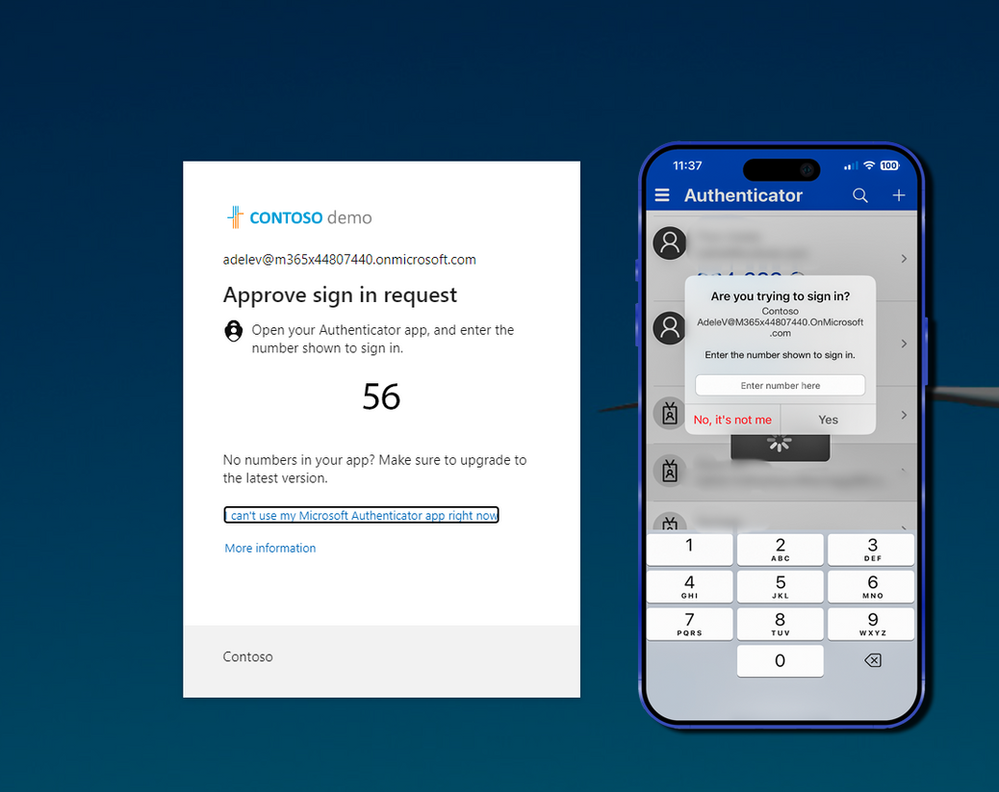
This simple but effective change means that even if an attacker triggers a push notification, the user cannot approve it without seeing the number displayed on the sign-in screen — which only the legitimate user would have access to.
Important: Microsoft has begun enforcing number matching for all Microsoft Authenticator push notifications. This is no longer an optional feature and will be rolled out to all tenants.
#How to Enable Number Matching
Number matching is enabled through the Microsoft Entra admin center (formerly Azure AD):
- Navigate to the Microsoft Entra admin center
- Go to Protection > Authentication methods > Microsoft Authenticator
- Select the Configure tab
- Under Microsoft Authenticator settings, set Number matching to Enabled
- Choose the target users — you can enable it for all users or specific groups
- Click Save
#Location Context
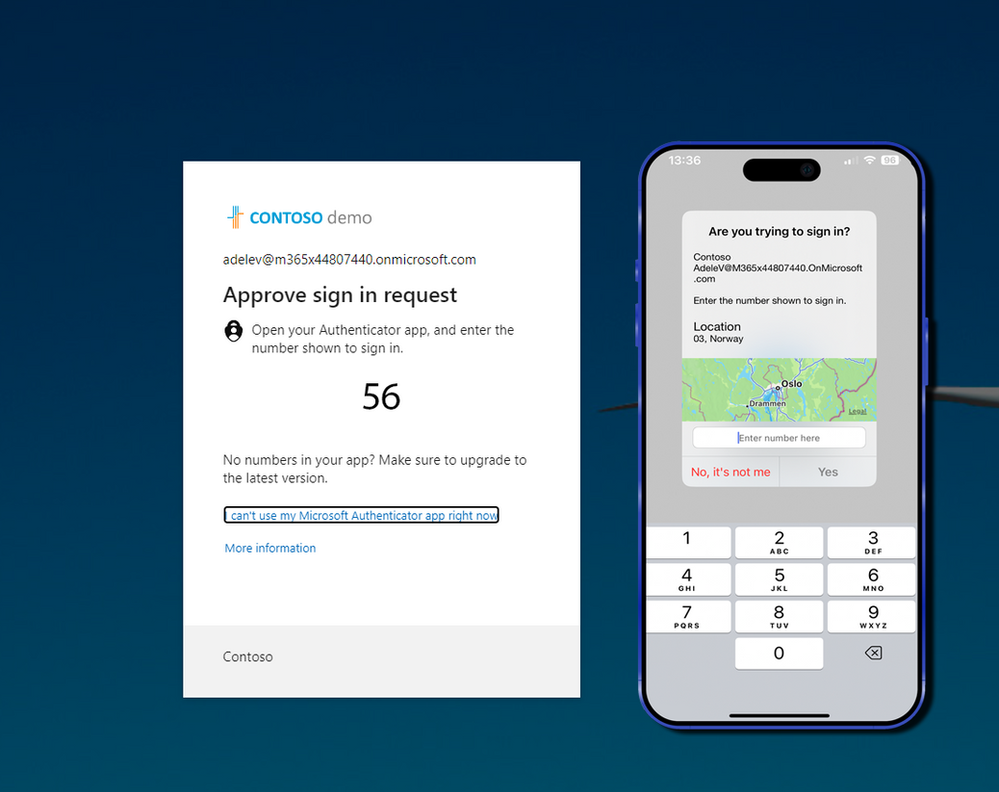
Location context adds geographical information to the MFA push notification, showing the user the approximate location where the sign-in attempt is originating from. This gives users valuable context to help them determine whether a sign-in request is legitimate.
For example, if you are sitting in your office in Reykjavik and receive a push notification showing a sign-in attempt from Lagos, you can immediately recognize that this is not a legitimate request and deny it.
#How to Enable Location Context
- Navigate to the Microsoft Entra admin center
- Go to Protection > Authentication methods > Microsoft Authenticator
- Select the Configure tab
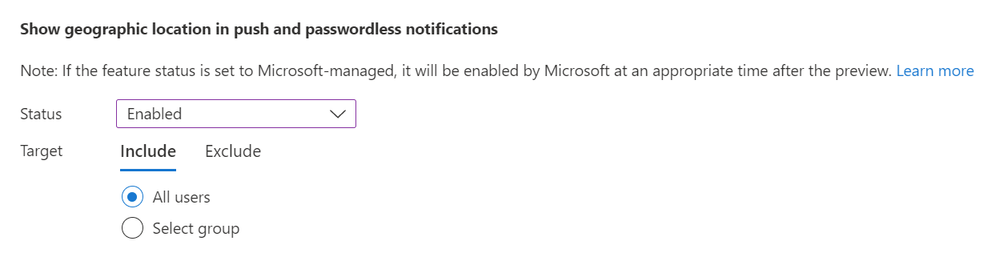
- Under Microsoft Authenticator settings, set Show geographic location in push and passwordless notifications to Enabled
- Choose the target users
- Click Save
#Application Context
Application context shows the user the name of the application that is requesting authentication. This is another layer of context that helps users make informed decisions about whether to approve or deny a sign-in request.
If you receive a push notification and it shows that the application requesting access is one you did not initiate, you know to deny the request immediately.
#How to Enable Application Context
- Navigate to the Microsoft Entra admin center
- Go to Protection > Authentication methods > Microsoft Authenticator
- Select the Configure tab
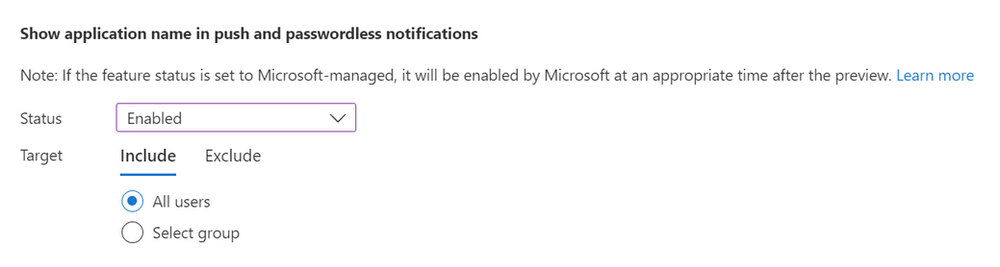
- Under Microsoft Authenticator settings, set Show application name in push and passwordless notifications to Enabled
- Choose the target users
- Click Save
#Summary
These three features — Number Matching, Location Context, and Application Context — work together to create a significantly more secure MFA experience:
| Feature | What It Does | Benefit |
|---|---|---|
| Number Matching | Requires user to enter a displayed number | Prevents blind approval of push notifications |
| Location Context | Shows sign-in location in the notification | Helps users identify suspicious sign-in locations |
| Application Context | Shows requesting application name | Helps users identify unexpected application access |
With MFA fatigue attacks becoming increasingly common, these features are essential for any organization using Microsoft Authenticator. I strongly recommend enabling all three features across your tenant to provide the best possible protection for your users.
Remember, security is a layered approach, and these features add meaningful layers to your identity security posture. Combined with Conditional Access policies, risk-based sign-in detection, and user education, they form a robust defense against modern identity-based attacks.